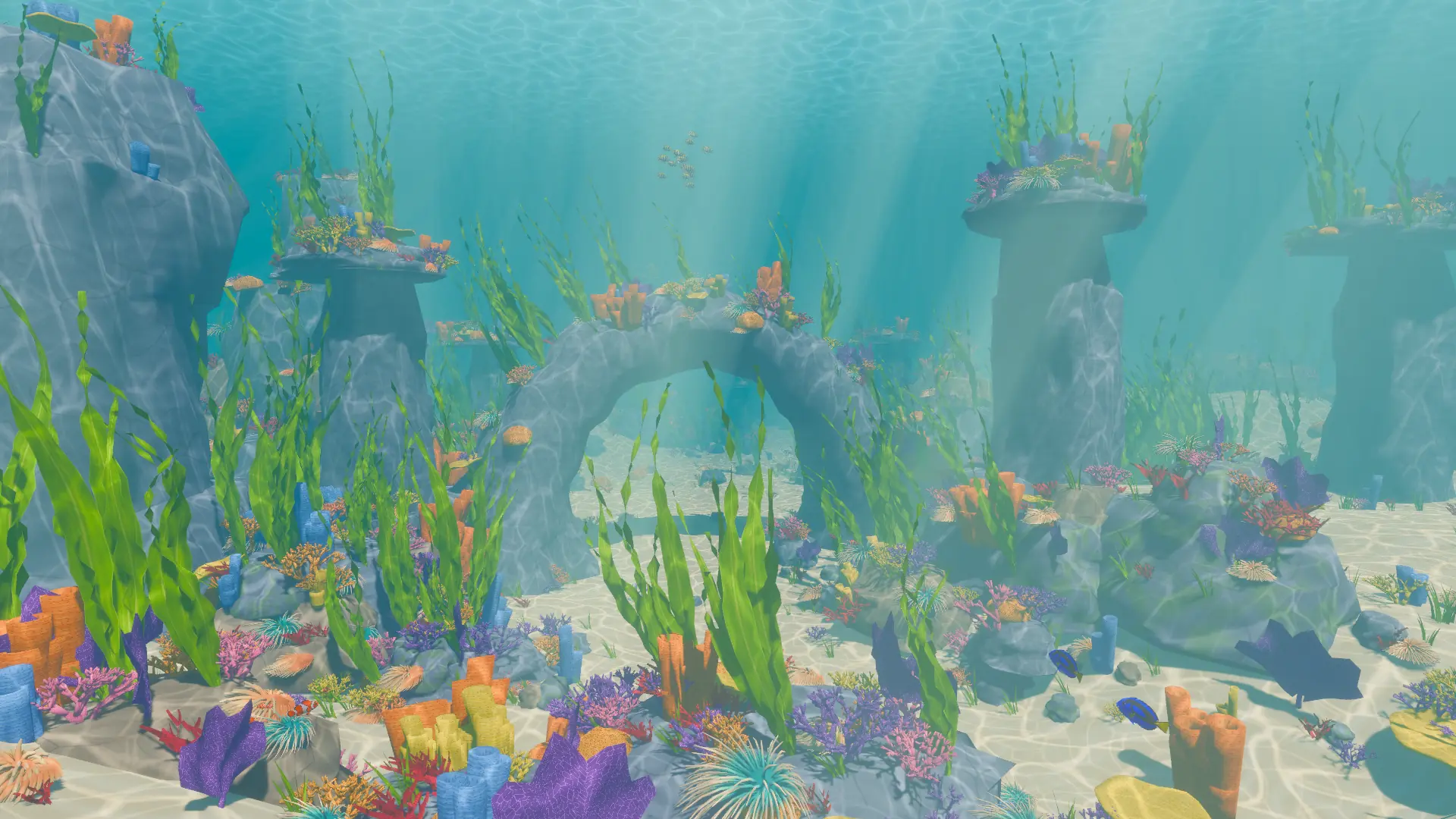
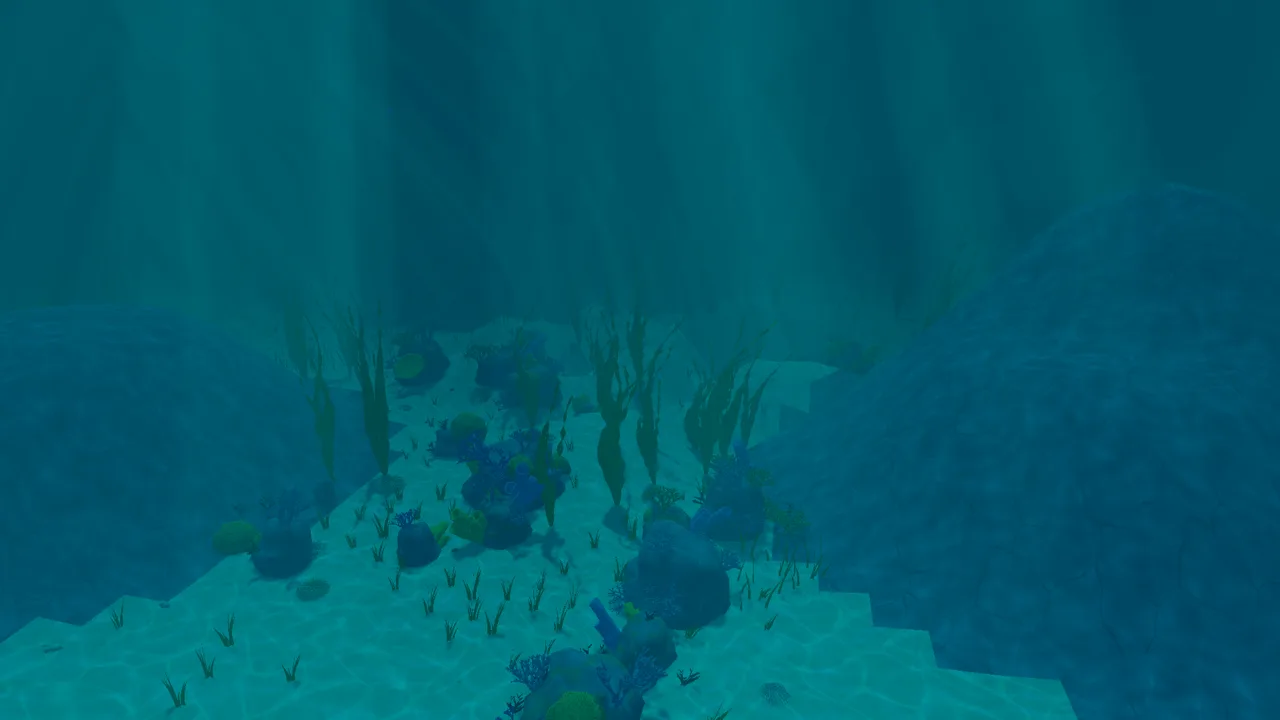
Build a reef, swim around it, and share it with everyone who plays Smart Fellas. You
don't need to have made a map before.
What you can make
A map is a place to play: the seabed, the coral and rocks, the fish, where each team
starts and where the food grows. You choose all of it. It could be a tiny bright lagoon
for four friends, or a big dark valley for 32 players.
You build in a free program called Godot. It shows the water and light as the game does,
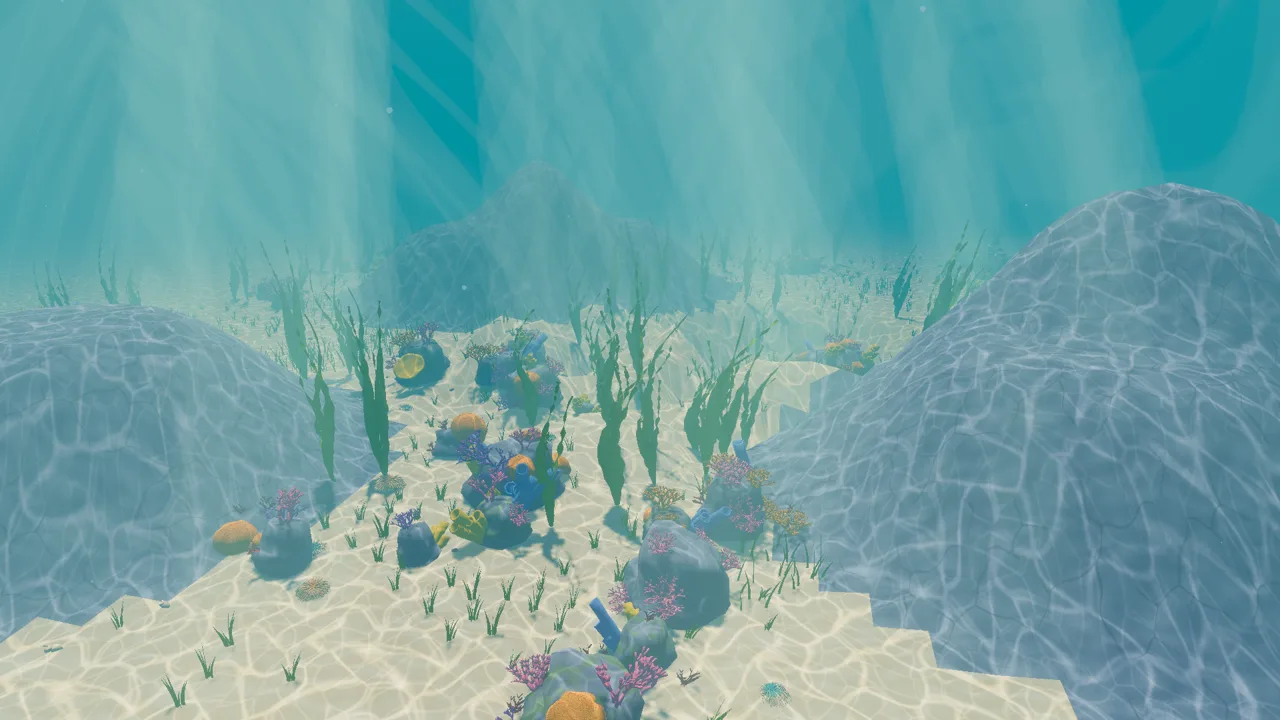
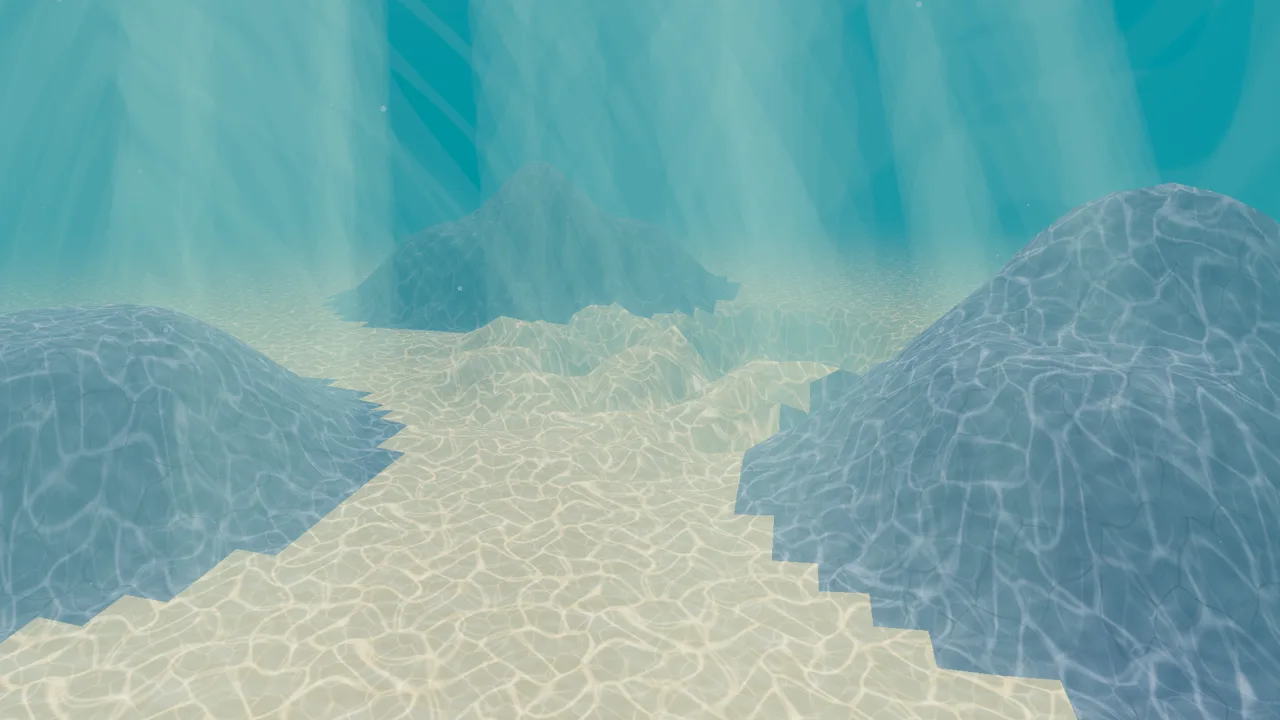
so what you see is what you get. This one started as bare sand: three hills raised with
the seabed tools, then one press of Populate.
A map made in a few minutes, as Godot shows it.
What you need
Three things, on a Windows or Linux PC:
Godot
A free program for building games. Think of it as your workbench. It's small, and you
don't need to install it: you unzip it and open it.
Use version 4.7.2. Take the standard zip for your PC, not the one marked "mono".
The game, through Steam. You need it to try your map, and later to publish it. People
who only play your map never need Godot.
Words you'll see
Piece
One thing you place: a coral, a rock, a strand of kelp.
Spawn point
A spot where a player starts the round.
Marker
A coloured shape that marks a spot, such as where a team starts. Only you see it, in
Godot.
Package
The folder holding your finished map, ready for the game to load.
Export
Turning your work in Godot into a package.
Seed
A number behind a random result. The same seed gives the same result again.
Steam Workshop
Steam's shelf of things players have made for a game.
Your first map in about ten minutes
Follow along with your hand on the mouse. Mistakes are easy to undo with Ctrl+Z.
Unzip the two downloads. Put them somewhere easy to find, such as a new folder
on your desktop.
Open Godot and open our project. Godot starts with a list of projects. Press
Import, then pick the project.godot file in the folder you unzipped from our
add-on. The first time, Godot takes a minute or two to read in all the pieces.
Start a map. Press Make a new bare map in the Paint panel,
at the lower right. You'll see a bare, sandy seabed under the water.
Look around. Hold the right mouse button and move the mouse to look. Keep
holding it and press W, A, S and D to swim about.
Press Populate. It's in the Map panel, beside Paint. One click fills the
map with rocks, coral, kelp, shells, food and fish. Don't like it? Press
Try again for a different one.
Fix something by hand. Drag a coral from the Pieces panel, at the bottom
left, onto the seabed. It lands where your mouse is. Click anything and drag its coloured
arrows to move it.
Press Test Map, at the top of the 3D view. The real game opens on your map,
with computer-controlled players (bots) on each team. It finds the game through Steam. If
it can't, it asks you to show it where the game is, once.
Swim around in it. That's your map. Close the game, change something, and
press Test Map again as often as you like.
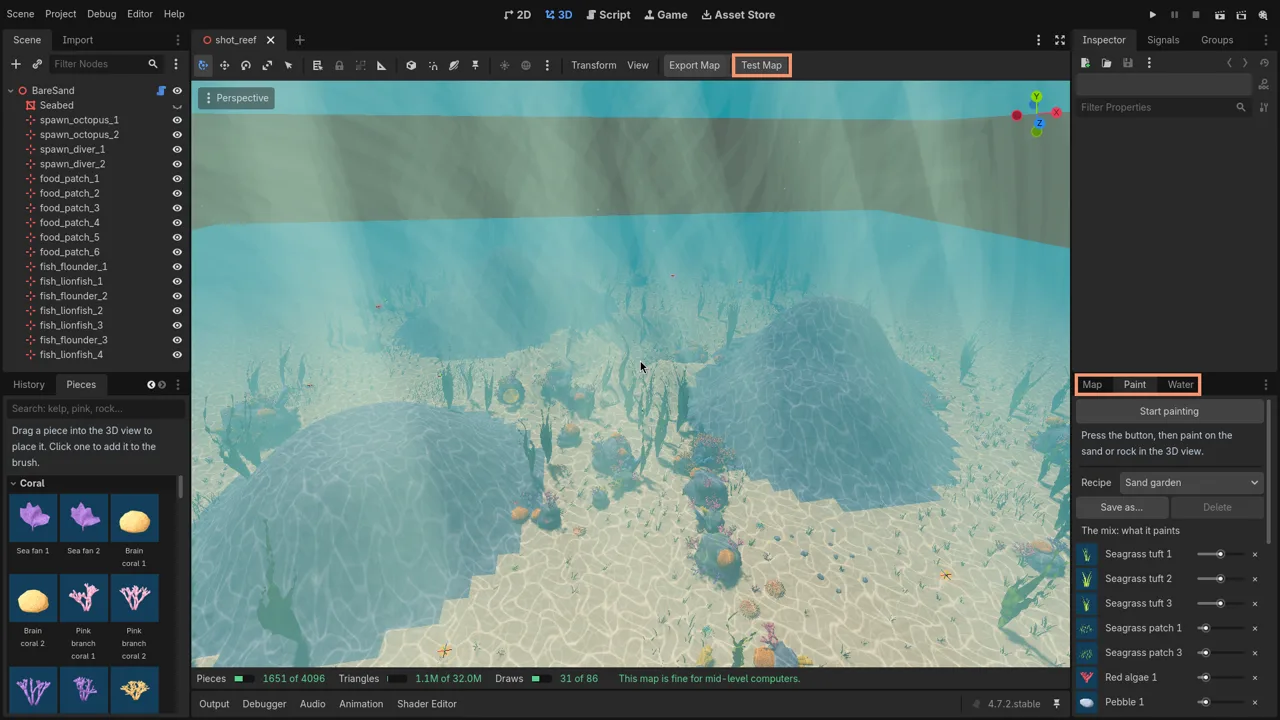
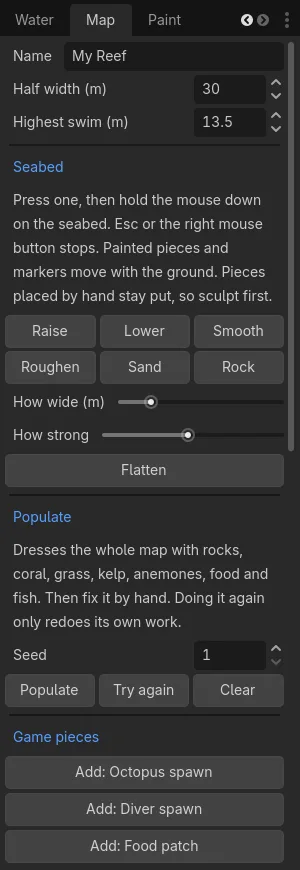
Godot with our add-on. Test Map is at the top. The Map,
Paint and Water panels are tabs at the lower right, under
the Inspector. The pieces are at the bottom left.
The tools
Each one is optional. Use the ones you like, and undo anything with Ctrl+Z. They live in
three tabs at the lower right, Map, Paint and
Water, and the Pieces panel at the bottom left.
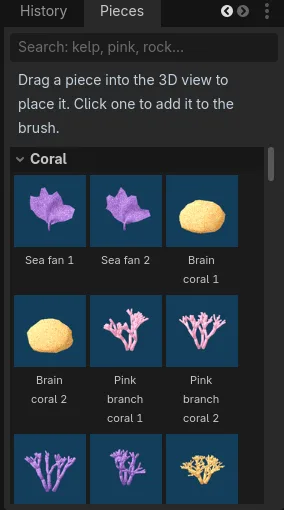
Pieces
Everything in our kit, in groups: corals, rocks, kelp, anemones, shells, sponges and a
shipwreck. Type in the search box to find one. Drag a piece into the 3D view and it
lands on the surface under your mouse, facing outwards.
Once it's in, move, turn and resize it with Godot's own handles. Keep it the same
shape: stretch all three sides together.
Good for: the few things you want in one exact spot.
Paint brush
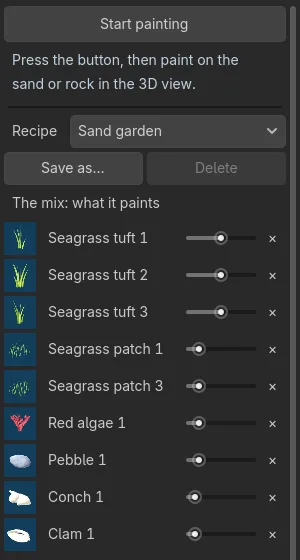
This is the main tool. In the Paint panel, pick a recipe, such as
Sand garden, Coral on rock or Kelp bed. Press Start painting, then
hold the left mouse button on the seabed or on rock. You can set:
the mix: which pieces it paints, and how often each comes up
how wide and how thick it paints, and how strongly it clumps
how much each piece's size, turn and lean vary
where things grow: on sand or rock, how steep, and how high
Hold Shift while you paint and it erases. The [ and ] keys make the brush smaller and
bigger. Esc stops. Save as keeps your brush under a name, as a small file
you can pass to a friend.
Populate
One click, in the Map panel, dresses a whole bare map: rocks, coral on rock, grass and
shells on sand, kelp in the deep, anemones in sheltered spots, plus food and fish.
Each result has a seed, so you can get a good one back.
Try again gives a different one, and Clear takes it away.
Both only touch Populate's own work. Anything you placed or painted by hand stays where
it is.
It doesn't add spawn points. Where the teams start is up to you.
BeforeAfter one press
Wildlife
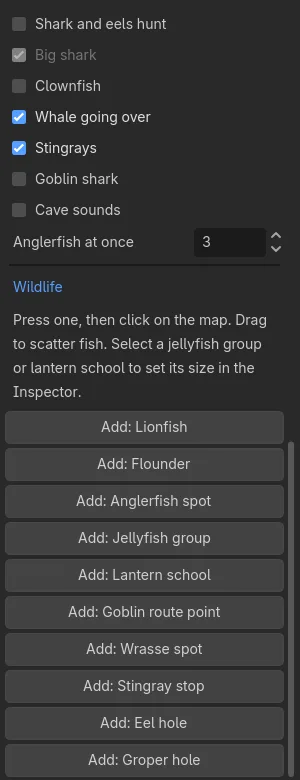
In the Map panel, switch on the sea life your map has, such as clownfish in the
anemones, stingrays, the shark and the whale. Then drop in markers to say where some
of them live:
lionfish and flounders
anglerfish spots
groups of jellyfish, and how far they spread
schools of lantern fish, and how far they roam
the goblin shark's route
wrasse spots, stingray stops, and eel and groper holes
Press a button, then click on the map. Drag to scatter fish along the way.
Your map only says where they live. The game takes care of the rest, the same on every
map.
Spawns and food
The Map panel also holds the map's name, how wide it is, and how high players can
swim.
Spawn points are where each team starts. Press
Add: Octopus spawn or Add: Diver spawn, then click
on the map. Each team needs one for every player it takes. You'll get a warning if the
teams start too close together.
Food patches are the areas where octopus food grows. Not all of them grow
food at the same time, so a map needs at least two.
Anything the game would refuse is shown in red as you go, in plain words.
Seabed
Shape the ground with Raise, Lower,
Smooth and Roughen: press one, then hold the mouse
down on the seabed. Paint it as Sand or Rock the same
way. Flatten starts again.
Sculpt first, then dress the map. Painted pieces and markers move up and down with the
ground, but pieces placed by hand stay put.
Caves and overhangs can't be made this way. They'll need a model made in a separate
program, Blender, and the game can't play maps with models of their own yet.
Depth and darkness
The Water panel sets how deep your map is, in metres. Everything about the water
follows from that one number, as it does in the sea: sunlight fades, the colours turn
blue, and the bright surface overhead slips out of sight.
Start with a quick choice: Shallow, Deep or
Midnight. You can also type your own depth, from 28 to 1,000 metres,
or change one thing, such as how far you can see. Very dark maps are allowed. That's
your call as the designer.
ShallowDeepMidnight: no sunlight reaches it at all
The cost meter
Every piece is more work for a player's PC. The bar under the 3D view shows how much
work your map asks for. It turns amber before it becomes too much, and red past the
limit.
It counts your pieces, up to 4,096, their triangles (the tiny flat shapes all 3D
models are made of), and draws (each batch of things the graphics card is asked to
paint).
What makes a good map
A good map gives both teams a fair chance. Four things matter most.
Places to hide
Octopuses hide by copying the reef around them. Bare sand gives them few choices. Mix
colours and shapes, so that there's always something nearby to copy.
Sight lines
A sight line is how far you can see from one spot. Long ones help divers. Rocks and
kelp break them up. Aim for both: some open water, and some tight, cluttered places.
Food
Food gets octopuses moving. Spread patches around the map, so that they have to leave
their hiding spots and cross open water to eat.
Keep the teams apart
Start the teams on opposite sides, with cover in between. Nobody should get caught
before the round has begun.
The best test is to play it. Try it with bots first, then with friends, and watch where
they get stuck, get bored, or never go.
Play it with friends
You don't need the Workshop to play your map with friends. Each of you copies its package
folder, from
exported_maps, into the game's maps folder: %APPDATA%\inkognito\maps
on Windows, or ~/.config/inkognito/maps on Linux. The host then picks it on the
map page. Everyone needs exactly the same copy, so send the same folder to everyone.
Publish to the Workshop Coming
Publishing happens in the game, not in Godot. First you make a package, then you hand it
to the game.
Press Export Map in Godot. This writes your package into the
exported_maps folder, in the folder you unzipped, next to
project.godot, and checks it. Any problem is listed in plain words, and Show it picks out the piece that caused it. Fix them and export again.
Open Smart Fellas. Make sure Steam is running. On the main menu, press
Maps, then the Published tab.
Press Publish and pick your package folder. The game checks it again. A map
with problems can't go up until they're fixed.
Fill in the details: a title, a description and a picture.
Choose who can see it: private (the starting choice), friends, or public.
Start with friends, and go public once you've played it together.
Accept Steam's Workshop agreement. You'll only see this the first time, with
a link to read it.
Upload. You'll see how far along it is. When it's done, your map opens on
its Steam page.
Picture to come
The Published tab, with a map ready to go up
Updating your map Coming
Change your map in Godot and export it again. Then, on the Published tab, press Update and
follow the same steps, adding a line about what changed. Everyone in a game needs the same
version of a map, so the game will tell anyone whose copy doesn't match.
How players find it Coming
The Browse tab on the Maps screen lists Workshop maps. Players can search,
sort by popular, newest or most subscribed, and filter by how many players a map suits.
They press Subscribe, which downloads your map, and can then press
Host a game on this map.
Anyone joining that game who doesn't have the map downloads it first.
Players can rate it with a thumbs up or down, so a good picture and a clear description
help.
Limits and rules
The game has a checker that looks over every map, on every PC, each time it loads. It
keeps maps safe for everyone. These are its real limits today. Export and Publish will
show you if you pass one.
In the map
What
Limit
Map name
Up to 40 letters. Letters, digits and everyday punctuation.
Map width
From 20 to 500 metres across. The map is square.
Swimming height (the ceiling)
From 5 to 100 metres above the seabed.
Water depth
From 28 to 1,000 metres.
Seabed
No steeper than 6 metres up for each metre across.
Players
At least 2, at most 32. The two team limits must add up to the most players.
Pieces
Up to 4,096.
Size of one piece
From 0.1 to 10 times its normal size.
Spawn points
Up to 256 for each team. At least one for each player on that team.
Food patches
At least 2, up to 256, since only some grow food at once. Every patch needs at least one food spot.
Food spots
Up to 4,096 in the whole map.
Patches growing food at once
At least 1, and no more than two thirds of your patches.
Fish
Up to 256.
Anglerfish spots
Up to 64.
Jellyfish
Up to 16 groups and 80 jellyfish in all. From 1 to 16 in a group.
Lantern fish schools
Up to 10.
The goblin shark's route
From 2 to 64 points, or none.
Wrasse spots, stingray stops, eel holes and groper holes
Up to 64 of each.
In the package folder
What
Limit
The whole package
Up to 256 MB, and up to 256 files and folders.
map.ron
Up to 2 MB.
preview.png
Up to 8 MB and 2048 x 2048 pixels. It must be a real PNG picture.
File and folder names
Up to 64 characters. Only lowercase letters, digits, - _ and .
Folders inside folders
Files may be inside at most 3 folders.
Some limits may change as the tools are finished. Custom models and scripts can't be
played yet: the game refuses a package holding them for now.
When the checker says no
It tells you exactly what's wrong in plain words. These are the messages you're most
likely to see. The numbers and names in yours will be your own.
The map has no food patches. Octopuses need food: add at least one.
What it means: There is nothing for the octopuses to eat.
How to fix it: Add a food patch, or press Populate.
The map has 2 diver spawn points, and needs at least 4: one for each diver it takes.
What it means: Everyone needs their own place to start, and there are too few.
How to fix it: Add more spawn points for that team, or lower its player limit.
The team limits add up to 10 players, but the map takes up to 12. They must match.
What it means: Your most divers plus your most octopuses should equal the most players.
How to fix it: Change one of those numbers in the map settings.
Food patch 3 has no food spots. Add one or remove the patch.
What it means: A patch is an area, and food needs exact spots inside it.
How to fix it: Add a spot to that patch, or delete the patch.
The map grows food in 4 to 6 patches at once, and has 6 patches. It must be at least 1, smallest first, and no more than two thirds of its patches. Add patches or grow fewer.
What it means: Some of your patches must be empty at any one time.
How to fix it: Add more patches, or lower the number growing at once.
Piece 12 is at (260, 3, 40), outside the map. It reaches 100 m each way from the middle and 30 m up.
What it means: Something sits beyond the edge of your map.
How to fix it: Move it back in, or make the map bigger.
This map places 5000 pieces. A map that didn't come with the game can place at most 4096. Remove some.
What it means: There is too much on the map.
How to fix it: Erase some pieces. Small ones in places nobody swims are the first to go.
preview.png isn't a PNG picture. Save it as a PNG.
What it means: The picture is another kind of file, even if its name ends in .png.
How to fix it: Open it in any picture program and save it as a PNG.
preview.png is 4096 x 2160 pixels. It must be at most 2048 x 2048. Make it smaller.
What it means: The picture is too large.
How to fix it: Shrink it in a picture program.
Preview.png needs a new name: names may only use lowercase letters, digits, dashes, underscores and dots.
What it means: Capital letters and spaces are not allowed in file names, so that a map works on every PC.
How to fix it: Rename it, in this case to preview.png.
notes.txt doesn't belong here. A map holds map.ron, preview.png, assets/ and scripts/. Remove it.
What it means: An extra file got into the package folder.
How to fix it: Delete it from that folder, or press Export Map again.
The map's name has 52 letters. The limit is 40.
What it means: The name is too long.
How to fix it: Pick a shorter name in the map settings.
map.ron has a mistake on line 14: ...
What it means: The file was changed by hand and no longer makes sense to the game.
How to fix it: Press Export Map in Godot again to get a clean file.
This map is written in format 4, and this game reads formats 1 to 3. ...
What it means: The map and the game are from different times.
How to fix it: The message says which to update: the game, or the map.
Where to get help
Stuck, or got a map to show off? Come and ask on the game's Discord.